
Artificial Intelligence SVG Generator Guide
Use an artificial intelligence SVG generator to create editable icons, logos, and illustrations. Get sample prompts and an SVG export checklist.

An artificial intelligence SVG generator turns a written brief into a vector graphic you can resize and edit. It is useful for interface icons, logo concepts, and illustrations you expect to reuse at different sizes. The workflow below takes you from a specific prompt to a checked SVG file, with examples you can adapt to your own project.
Open the AI SVG generator on the VectorMint homepage to follow along.
Choose text generation or image tracing
Start with Text to SVG when you have an idea and want the AI to design the shapes. Use Image to SVG when you already have an image and want to reuse its silhouette or color regions. A clean PNG of a flat logo is a good candidate for tracing. For a photograph, expect a stylized result or simplify it to a few clear shapes before tracing.
SVG can contain vector shapes, text, and bitmap images. For a graphic you can recolor or reshape, check that its visible artwork is made from paths or other shapes. W3C overview of SVG
1. Write a prompt for the size you need
Name the subject, intended use, palette, and composition. If the asset needs to work as a small icon, ask for a strong silhouette and leave out details that will disappear. Pick a canvas ratio that fits the space you will put the graphic in.
A paper airplane icon for a 24 px app toolbar. A centered silhouette, two solid cobalt tones, one visible fold, generous padding, and a transparent background. No text or shadows.
Try one change at a time when refining the prompt. For instance, ask for a wider wing angle while keeping the colors and layout. You can then judge whether the change improved legibility at the intended size.
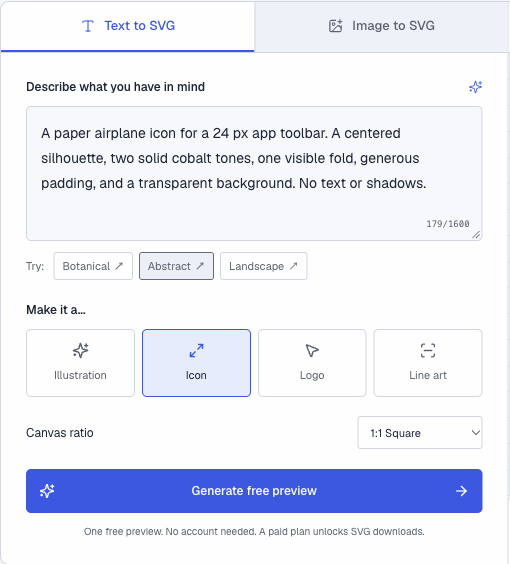
Choose the style and canvas ratio alongside your prompt in VectorMint.
2. Pick a style for the job
- Illustration gives a scene room for several shapes and colors. Try “A sunlit greenhouse with sage leaves and terracotta pots, flat color blocks, landscape format.”
- Icon favors a compact, readable symbol. Try the paper airplane prompt above, then inspect the result at 24 px.
- Logo calls for a distinctive mark with simple geometry. Try “Two overlapping mountain peaks forming an abstract trail badge, one ink color, no lettering.” Check how it reads in black and white.
- Line art emphasizes outlines. Try “A single olive branch with clean dark strokes of even weight, open space around the leaves, no filled background.”
3. Inspect the SVG before exporting
Use Preview to check the composition and colors. In the preview, drag the divider toward Color to reveal more of the Outline. Inspect the contours for stray paths, gaps, or overlapping shapes. The Code tab shows the SVG source when the file is available. If only a color needs to change, try the palette controls before generating a fresh version.
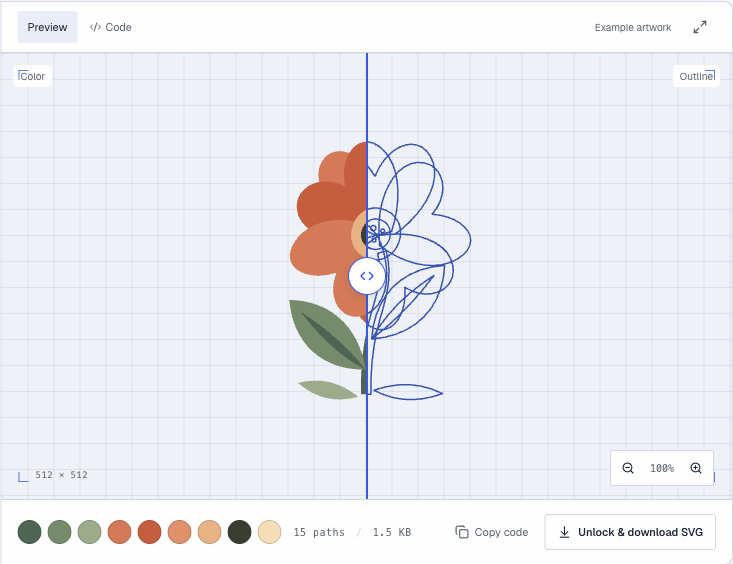
The preview divider compares color and contours on VectorMint's built-in Botanical example.
When the file is ready, download the SVG and open it in a browser or vector editor. If the preview is locked, the button shows Unlock & download SVG. Run through this checklist before using the file on a site or in a design.
- Check it at the actual display size. A clean-looking 512 px preview can lose fine detail at 24 px.
- Test light and dark backgrounds. Check contrast and make sure any intended transparent areas remain transparent.
- Verify the geometry. Look for a sensible
viewBoxand try selecting or recoloring an individual shape in a vector editor. If the main artwork is inside an<image>element, check whether it embeds a bitmap. - Check file size. A detailed trace can produce many paths. Simplify the artwork if a small interface icon is unusually large, then compare it with the original before replacing the file.
Common questions
What makes a generated SVG editable?
The drawing needs selectable vector objects. A file with shapes such as <path> or <circle> lets you work with their geometry and fills. For detailed artwork, check that the regions you intend to change are separate objects.
When should I keep PNG or JPG?
Keep a raster file when photographic texture, soft lighting, or fine gradients are essential. Use SVG for artwork whose shapes need to stay sharp or editable at several sizes. For a flat graphic you already have, start with VectorMint's image-to-SVG converter and inspect the traced edges before exporting.